 Designing Label Templates for SAP GLM+ Integration
This feature must be installed by Loftware Professional Services.
This feature is available only in the Loftware Cloud Enterprise SP edition of Loftware Enterprise SP.
You can design label templates to support SAP GLM+ integration. For general information about designing a label template A digital representation of a label that can be combined with variable data and used by print jobs to generate print job details., see Designing Labels and Layouts.
Tip: Any label templates used for SAP GLM+ integration must be version controlled. If you are unfamiliar with using version-controlled label templates, see Working in a Version-Controlled Environment.
The additional guidance may be helpful when designing label templates intended for use with data received from SAP GLM+ via Loftware Integration for SAP® GLM+.
Data Refs Generated from Item IDs
In Label Design Data reference. The data source used to populate a field with a value. An Input Data Ref is the data source from which a Prompt field obtains data. for each variable field that you include in the label template to populate it with data received from SAP GLM+. The data refs control which data received from SAP GLM+ goes into which field. When a print request is received, the business rule parses the data in the XML list of Item IDs and inserts them into a data map A repository for the data for use when responding to a print request. Each data map entry is composed of a name (key) and a value.. The data map contains all of the information needed to populate fields in the label so that the print request can be processed.
Loftware Enterprise SP requires each data ref within a print request to be unique. To achieve this, the SAP_GLM_BR business rule manipulates the data during processing. In particular, the data ref for each variable field becomes /Body/ followed by the Item ID from the XML received with a sequential integer appended (starting with 1). This integer is incremented in any successive data ref with the same Item ID.
Example: Business Rule Processes Item IDs into Unique Data Refs
The following is an excerpt of XML that might be received. Note the Item Ids. Those ending in SY denote a Symbol (image).
<Item Id="G1023093SY" Position="000000" Type="">GMS_acid_trans.png</Item>
<Item Id="G1023093SY" Position="000000" Type="">GHS_flamme_trans.png</Item>
<Item Id="G1023093SI" Position="000000" Type="">Danger</Item>
<Item Id="GCG_EAN" Position="000000" Type="">8068600140924</Item>
The business rule produces the following data refs for the Item IDs in this example. Notice that each data ref begins with /Body/ followed by the Item ID and a sequential integer (starting with 1). All data refs follow this pattern.
/Body/G1023093SY1
/Body/G1023093SY2
/Body/G1023093SI1
/Body/GCG_EAN1
Using Variable Text Fields with SAP GLM+ Integration
In Label Design A type of field with content and formatting that can change based on data from a data source, such as information entered by a data provider. fields or move those that already exist on the label canvas The Label view in Label Design, which represents the design of the label. Clicking the label canvas displays the properties of the label template..
When you select a Variable Text field, you can configure its properties, including font formatting and a name if you would prefer a name other than the default. Giving your fields meaningful names can make them easier to work with. The data ref associated with the field determines what value from the data map A repository for the data for use when responding to a print request. Each data map entry is composed of a name (key) and a value. goes into the field when a label is printed.
For any Variable Text field, you can specify default text to be printed if the XML received from SAP GLM+ does not include a value for the associated Item ID. To do so, enter text for the Default Value of the Variable Text field.
Tip: It is recommended that you clear the Force Max Chars checkbox for each Variable Text field so that the number of characters that can be entered is not restricted by the value of Max Chars.
Example: Data Ref for a Variable Text Field
If the XML received from SAP GLM+ includes the following data...
<Item Id="G1023093SI" Position="000000" Type="">Danger</Item>
...then SAP GLM+ integration in Loftware Enterprise SP uses that data to generate the following data ref
/Body/G1023093SI1
In this example, if you add a Variable Text field to a label template and set the Data Ref for that field to /Body/G1023093SI1, then when a label is printed the Variable Text field will be replaced with the text Danger.
For more information about the properties of Variable Text fields, see Text Properties.
Using Text Boxes with SAP GLM+ Integration
In Label Design The Label view in Label Design, which represents the design of the label. Clicking the label canvas displays the properties of the label template..
When you select a Text Box field, you can configure its properties, including font formatting, paragraph spacing, and a name if you would prefer a name other than the default. Giving your fields meaningful names can make them easier to work with. For more information about the properties of Text Box fields, see Text Properties.
Tip: You can link text boxes to each other so that any text that does not fit into one text box can flow into another. For more information, see Link Text Boxes.
Combining Data Refs by Using a Formula Data Source
The data ref associated with the field determines what value from the data map A repository for the data for use when responding to a print request. Each data map entry is composed of a name (key) and a value. goes into the field when a label is printed. However, you can configure a Text Box field to contain values from multiple data refs by using a Formula data source A mathematical or logical statement that acts as a data source and can serve as the data ref for a document field. A formula data source can be used to concatenate strings, perform mathematical operations on numbers or perform string operations on text.. For information about creating a Formula data source, including operations and functions available for use in Formula data sources, see Create a Formula Data Source.
Example: Combining Warning Statements into a Paragraph
You can configure a Formula data source to combine several warning statements into a single paragraph. This example shows a Formula data source configured to concatenate data from multiple data refs. Note the required syntax used in the formula, such as enclosing each data ref in braces and including a + operator between data refs.

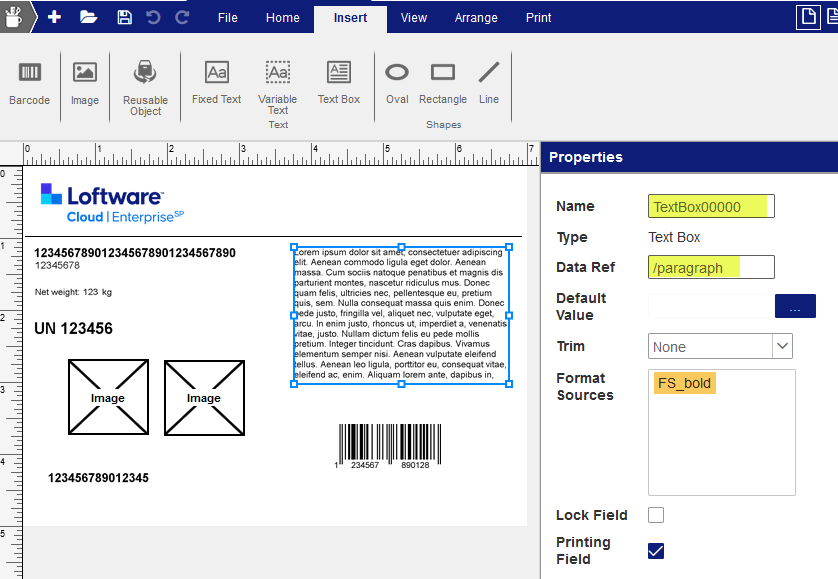
To configure a Text Box field to include these data refs, you would select the Text Box field and enter the data ref of the Formula data source (in this example, /paragraph) into the Data Ref property of the Text Box field.
Character-Level Formatting in Fields by Using a Format Source
You can configure format sources that act as character-level formatting specifications that can be applied to selected Text Box fields and Variable Text fields. You can apply formatting to a particular range of characters within a field or to a particular pattern of characters. You can include multiple patterns and ranges in one format source.
When you select a Text Box field or a Variable Text field, its Format Sources property lists any Character-Level format sources applied to it. To apply a format source to the field, click View > Format Sources, and then drag and drop a format source onto a field in the Label view.
Example: Applying Special Formatting to Codes with a Text Box
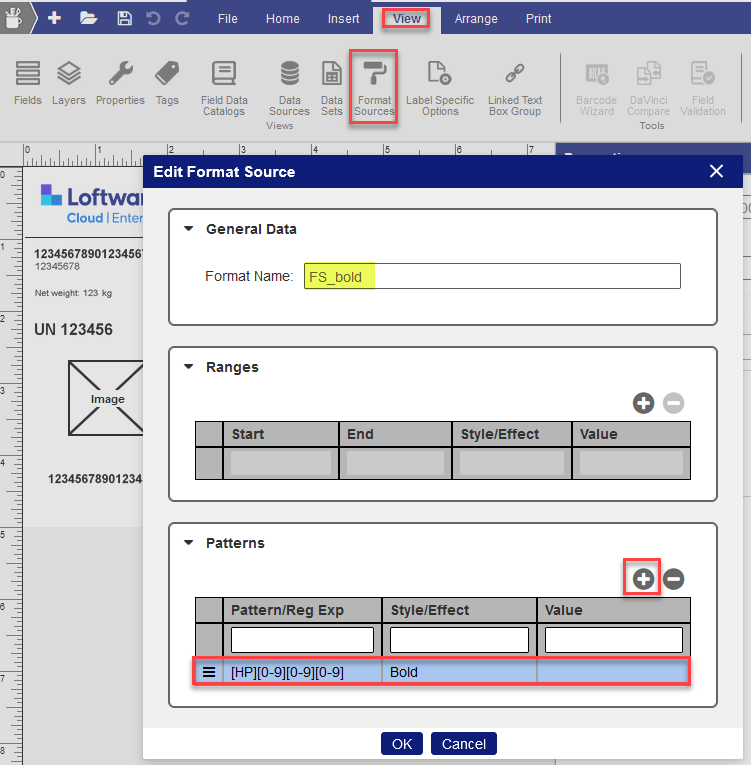
If you need to apply special formatting to some text within a Text Box or Variable Text field, such as making certain types of codes bold, you can use a Character-Level format source.
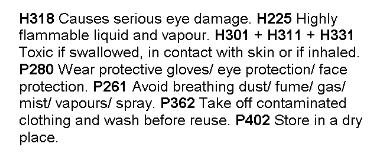
In this example, a Character-Level format source is used to format in bold each occurrence of H or P immediately followed by three numbers.
When the preceding format source is applied to a Text Box field, it produces a result like the following in printed output.
For more information about format sources, see Configuring Format Sources.
Using Images with SAP GLM+ Integration
Any images that you want to use on a label must be imported into Loftware Enterprise SP. Images cannot be modified within Loftware Enterprise SP.
Note: All images used with SAP GLM+ integration must be stored in the folder specified for this purpose when SAP GLM+ integration was configured in Loftware Enterprise SP. A subfolder may also be used. Loftware recommends /Images/User Images or a subfolder.
Importing Images into Loftware Enterprise SP
You can import images individually or in bulk. For more about importing images, see Import a New Image and Bulk Import Images.
Tip: File name extensions are removed during import, but if needed can be manually added to the image name when saving an imported image. All images in Loftware Enterprise SP are stored in .png format, regardless of any file name extension manually added.
Adding an Image to a Label Template
For information about adding an image to a label template and about the properties of an image field in a label template, see Using Images.
For SAP GLM+ integration, data refs are based on Item IDs, but data received from SAP GLM+ may use the same Item ID for multiple images. (An Item ID ending with SY denotes an image.)
Loftware Enterprise SP requires each data ref within a print request to be unique. To achieve this, the SAP_GLM_BR business rule manipulates the data during processing. In particular, the data ref for each variable field becomes /Body/ followed by the Item ID from the XML received with a sequential integer appended (starting with 1). This integer is incremented in any successive data ref with the same Item ID.
For examples, see the Data Refs Generated from Item IDs section earlier in this topic.
Designing a Label Template for PRE or POST Labels
The label template, blanklabel, that was installed by Loftware Professional Services to support SAP GLM+ integration, is used when a print request requires a PRE label or a POST label.