Incorrect Loftware Connector for SAP Service Statuses
Description
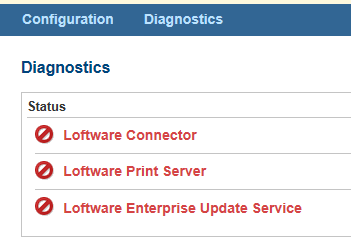
On a fully operational Loftware Connector Java-based software that establishes a high-speed connectivity bridge between UNIX-based enterprise applications and the Loftware Print Server (LPS). for SAP Applications system, the indicators on the Diagnostics tab show that services are not running.
This article assumes that Loftware Connector See Loftware Connector. for SAP Applications, LPS, Loftware Connector Console, and Loftware Enterprise Update are installed on the same system.
Explanation
In order to find the correct status of all of the services that support the Loftware Connector for SAP Applications, the Loftware Connector Console must query the status through Windows. When all services are functional, but the Connector Console reports that they are not, this can be because the Connector Console does not have access to Windows services. The Loftware Connector Console runs through IIS. Because of this, the processes running through Connector Console inherit the IIS user's permissions. If the IIS user's permissions do not allow access to Windows Services, then elevated permissions are required.
Solution
First, ensure Loftware Connector for SAP Applications Server, Loftware Enterprise Update, and Loftware Print Server are all started. Find those services through the Windows Services dialog (services.msc)

If all services are started and the Diagnostics page still shows all services down, then additional permissions need to be added to the IIS users' group.
To add permissions, the following steps show how to add the IIS users' group to the local administrators group.
Security Warning
Please review your organization's security policy. Adding a group to the local administrators group may not be advised for all organizations. To grant specific permissions to the IIS user's group that will allow access to Windows Services but do not allow more, please refer to documentation provided by Microsoft.
- Open the Windows Local Users and Groups dialog (lusrmgr.msc).
- Click on the Groups folder.
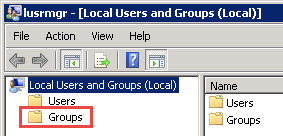
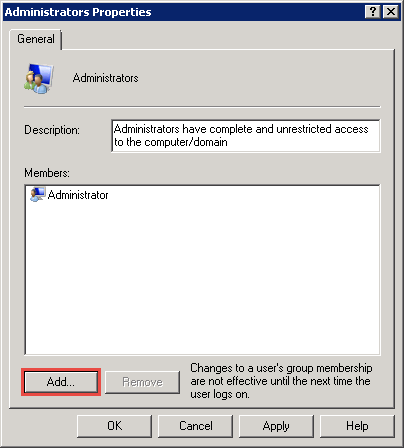
- Right-click on Administrators and select properties.

- In the Administrators Properties dialog, Click the "Add" button.
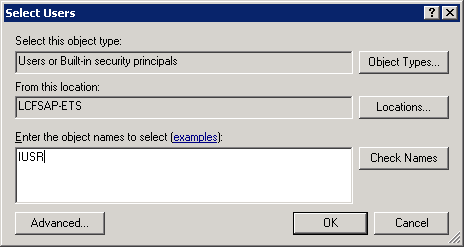
- Enter IUSR as the object name to add, click "OK".
- Click "OK" on the Group A logical organization of resources. Resources are not failed from one cluster member to another, groups are. This allows the administrator to place dependent resources into one unit, which guarantees that the same cluster member always owns a resource and all its dependencies. Properties window.
- Restart IIS (run "IISReset").
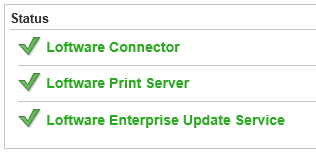
When you log back into the Connector Console and choose the Diagnostics tab, you will now see that the services are reporting correctly.
Article Number
2014068
Versions
All supported LPS family product versions with Loftware Connector for SAP Applications
Environment
Windows Server 2008
