How to Return More Than 25 Rows of Data From the On Demand Print Client
Description
In On-Demand Print Client when using an ODBC connection, the key field will only return 25 rows. How can this be increased, and what are the pros and cons to increasing this value? You can narrow down the search by typing in the beginning of the key record you are looking for.
How to Increase the Row Count
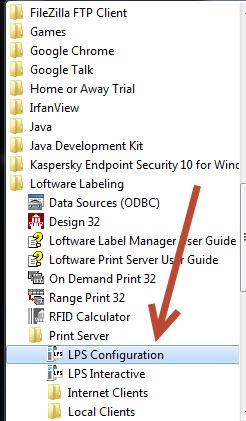
- Navigate to Start - All Programs - Loftware Labeling - Print Server - LPS Confguration.
- On the LPS Configuration box, click the Service Manager button and then click the Stop button to stop the service.
Once the service is stopped the screen should appear as follows: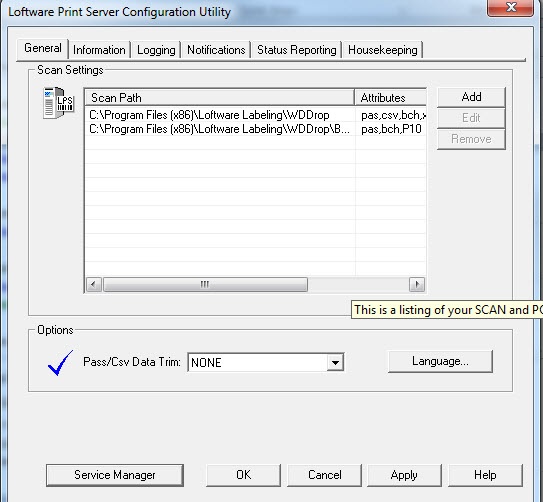
- Click Shift+F2 to display the hidden Advanced tab.
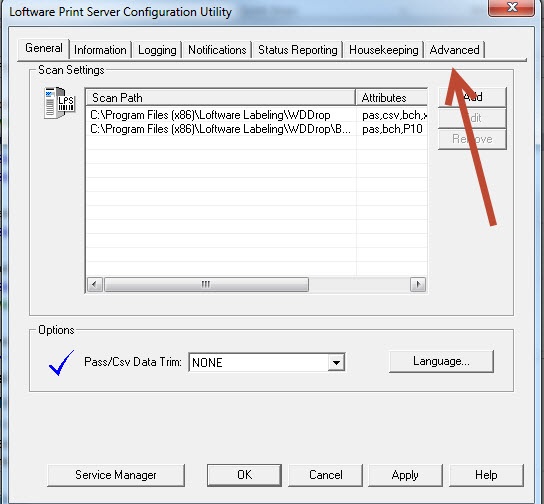
- Select the Advanced tab.
- In the middle of the dialog, on the left hand side, you will see a box you can edit called Page Size.
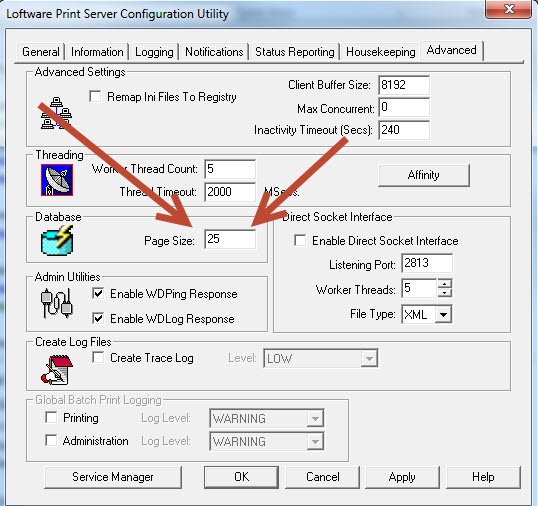
- Change the size to the desired return record count. Please keep in mind that the bigger the number the more information the query will return. This means you could see slower response for the information, and also the system could eventually time out if too much information is being requested to return.
- Once you have selected the desired Page Size select Apply. Once the changes have been applied select the Service Manager, then restart the service.
- Once the service has been restarted click the OK button to close the Loftware Print Server Configuration Utility box.
You should now see the change you have made when you go into On-Demand Print Client and try to return information from the ODBC connection.
Article Number
2014028
Versions
On-Demand Print Cient
Environment
Window7, Windows XP, Server 2003, Server 2008
