Error M634 Unable to Open File
Message
This error occurs when using Loftware Label A label is a design area on the computer screen where a label format is created or edited. Manager and using On-Demand Print 32, when the label file is in Read-Only mode.
- Open On-Demand print 32, and select the .lwl file you are trying to print.
- As soon as you select the .lwl file and click open the following error will come on the screen.
(M634) Unable to open file:
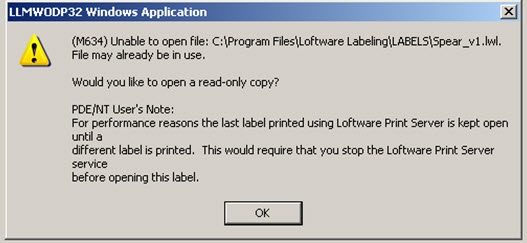
You are not allowed to print, as this error comes up as soon as you select the .lwl file you want to print.
Explanation
Migrate to your labels directory, if this is the default location they will be located at:
- 32-bit Operating system:
- C:\Program Files\Loftware Labeling\LABELS
- 64-bit Operating
- C:\Program Files (x86)\Loftware Labeling\LABELS
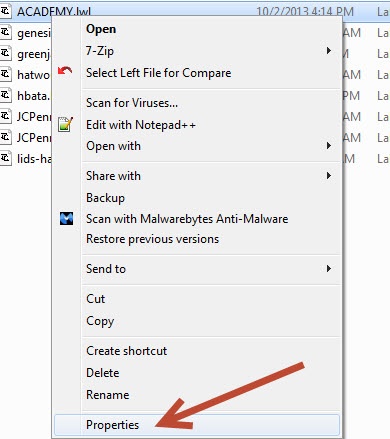
- Using the logged-in user, right click on the .lwl file and select properties
- Look at the attributes and see if read only is selected. If the read only box is checked this is what is causing the error above.
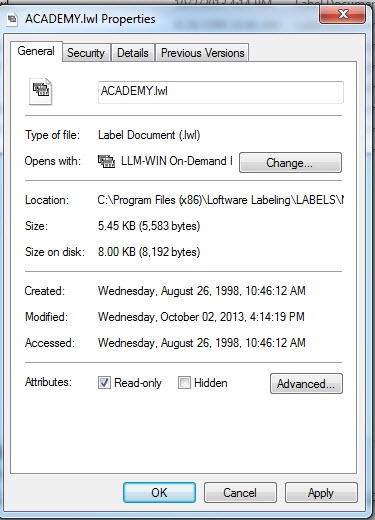
- Determine the access rights the user currently has. Most likely you will need to give the user full access to these files.
Solution
Add the user to have full access (read, write, modify) to the Loftware Labeling Directory.
In any version 9.8 and above you can add the user to the Loftware_group, otherwise you would have to give the user full administrator rights on the Loftware Labelng Directory.
Article Number
2013037
Versions
LLM 9.8 and higher
Environment
Windows XP, 7, 2008R2, and 2003 installation environments.
