Error M4782 Could not obtain InstanceID for Printer Number
Message
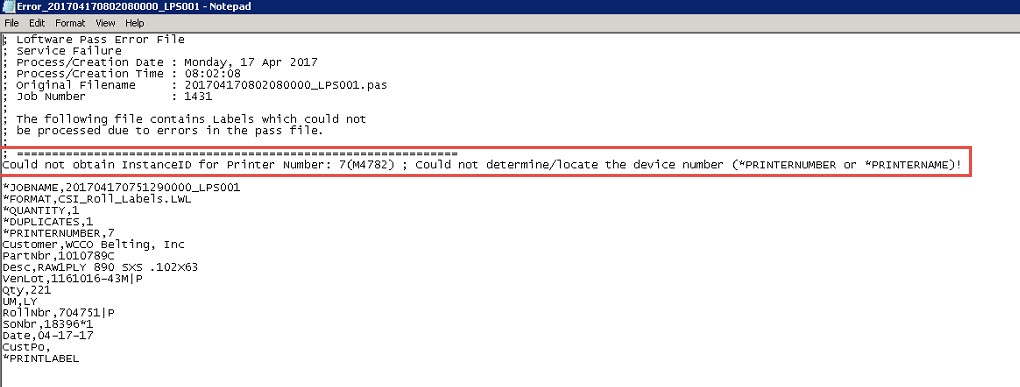
After dropping a file into LPS, it is sent to the error folder under the WDDrop directory with a message at the top of the file indicating the following:
Could not obtain InstanceID for Printer Number: XX (M4782); Could not determine/locate the device number (*PRINTERNUMBER or *PRINTERNAME)!
Note: XX references the Printer ID the drop file is specifying in the field *PRINTERNUMBER.
Explanation
This error can occur if the device specified in the drop file is not listed within the LPS Status Client Application that allows the viewing of LPS printing activity from anywhere on the network. It allows pending jobs to be deleted and jobs to be reprinted on an as needed basis. Tree and Context views are provided to maximize the information that can be obtained. Any number of LPS servers can be monitored. Jobs can be viewed, resubmitted, or deleted with a right-click of the mouse..
Solution
One way to solve this issue is to do the following:
- Log in to the LPS Server as the same user that the LPS Service is running as.
- Verify that all devices appear in the LPS Status Client by opening the application.
Note:To determine what user is currently configured to run the Loftware Print Server Service, launch the LPS Configuration Utility and click the Information tab to validate the user details.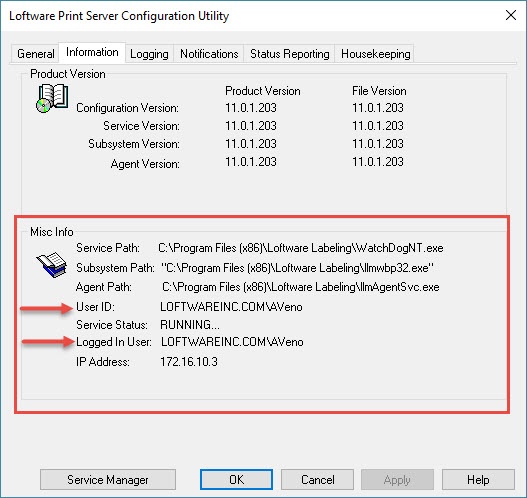
- If the device that the drop file is referencing is not seen in the LPS Status Client, then add that device within the LLM (Design32) Device Configuration.
Note: If the device is linked to a Windows spooler, verify that the printer was also added using the same user credentials as what the LPS Service is running under. - If the printer already exists in Windows, remove the printer and then re-add.
- Once the printer is re-added and configured within LLM (Design32), try re-dropping the file into the LPS.
Article Number
2017124
Versions
All supported LPS family product versions
Environment
Windows Server 2008 R2
