For easier designing: layer states
Layer states allow you to show/hide, lock/unlock, or highlight your layers.
Note
Layer states only affect the label template
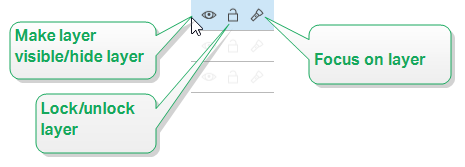
Layer states allow you to:
Keep the layer visible or hide the layer. Toggle the states to make all layer objects visible or hidden while you are designing your label template
or form .Note
The ability to show or hide a layer helps you position the objects that appear above or below other objects.
Unlock or lock the layer. If you lock a layer, you cannot:
Add objects to this layer.
Move objects from other layers to this layer.
Change the position of the existing objects.
Delete this layer.
Note
Layer locking prevents unwanted layout changes.
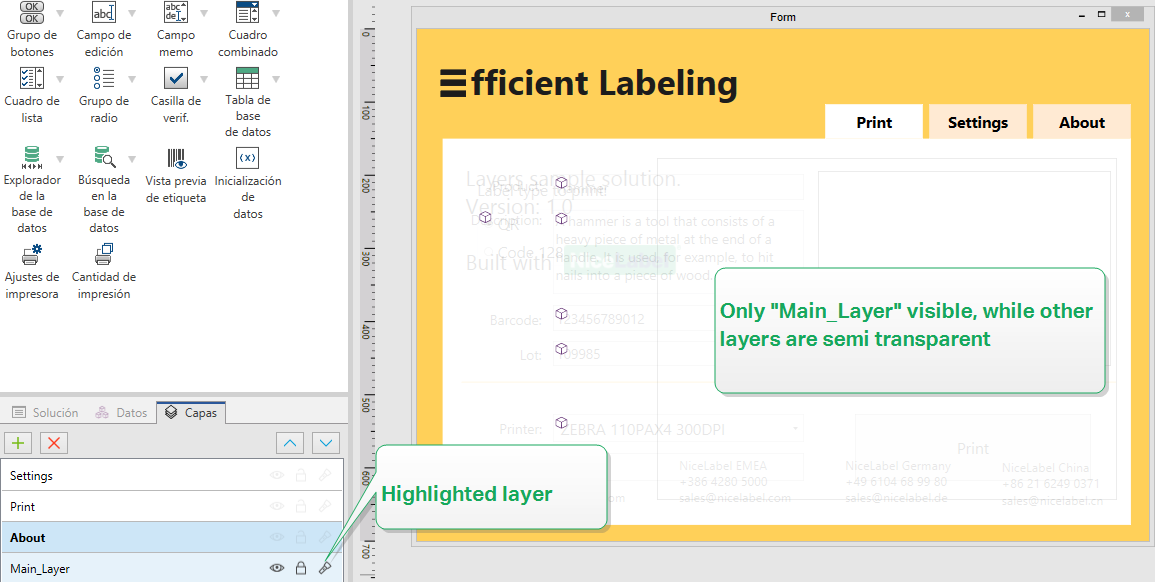
Set focus on the layer. Use this option to determine which objects are on this on this layer by defocusing the objects that belong to other layers. If you hover over the focus icon with your mouse pointer, the objects on this layer remain visible, while all other objects become semi transparent.
 more
more