Setup with license key or hardware key
-
Complete the Introductory setup steps.
-
Enter your License key. Your license key is included in the email that was sent to you after completing the purchase or in the product package.
The alternative is to select License is on a hardware key option. An additional way of distributing the license keys is sending them on USB drives.
USB drive carries licensing information for your copy of Loftware . Plug the USB drive into your computer and click Next.
Note
Hardware key can only be used for single-user licenses. As a result, only Desktop Designer module is installed during a hardware key setup of Loftware .
Tip
In specific deployment cases – i.e. when installing Loftware in multi-user environments – license key can be read from the installation file name. To achieve this, rename the installation file using the following format: Setup_XXXX-XXXXX-XXXXX-XXXXX-XXXXX.exe ("X" marks the license key characters). Loftware is automatically configured to use this license.
Note
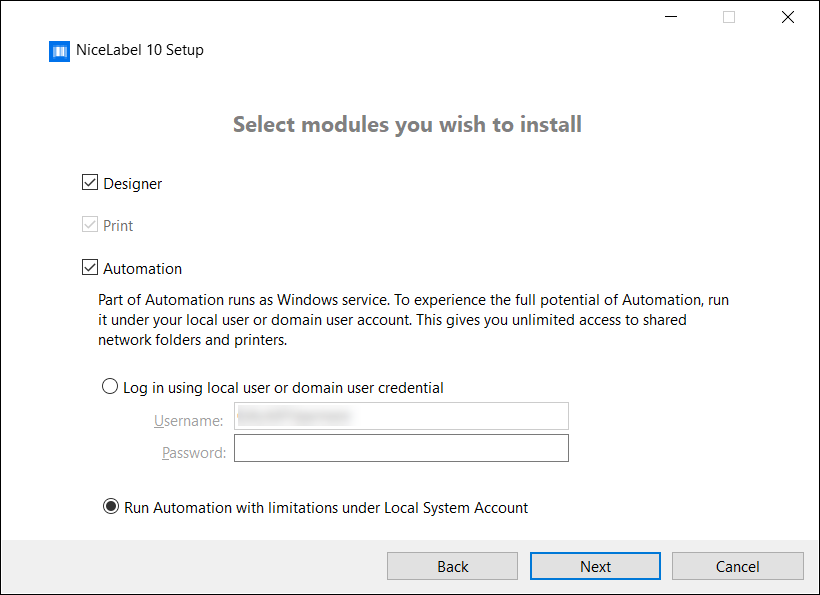
The Automation module is deselected by default if you install Loftware using a hardware key.
Note
The previously entered license key determines which product levels run in trial mode and which without time limitations. It also defines which Loftware Desktop Designer product level (Express, Pro, or PowerForms) is available for use.
-
Select the modules you wish to install.
-
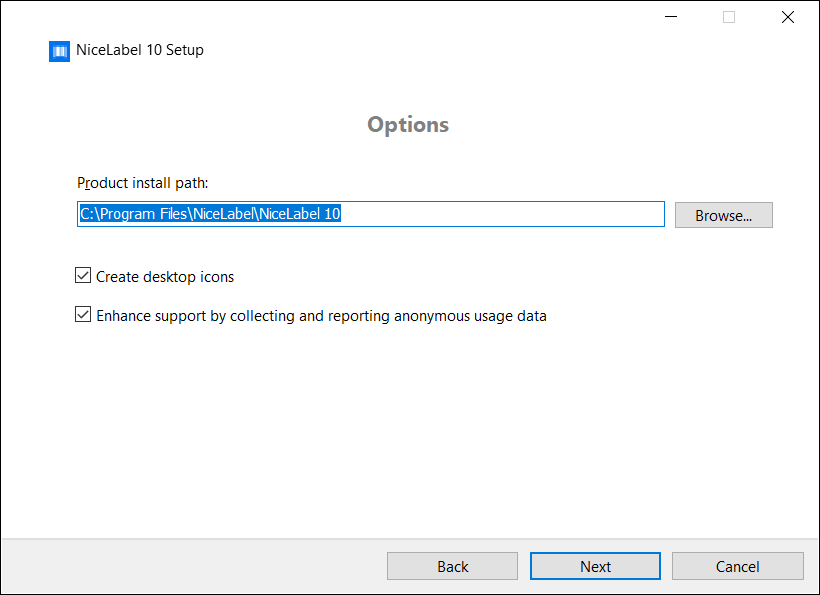
Define installation path and decide if you want to share your usage data with Loftware or not. Anonymous usage data helps Loftware improve the applications and therefore increase your productivity.
-
Click Next to continue. You are ready to install Loftware .
-
Click Install. The installation begins.
-
Run Loftware . If your license is a Label Management System (LMS) license, the Connect to Control Center window opens. Use this window to connect to your Control Center.
Example
http://yourcontrolcenter/EPM/
-
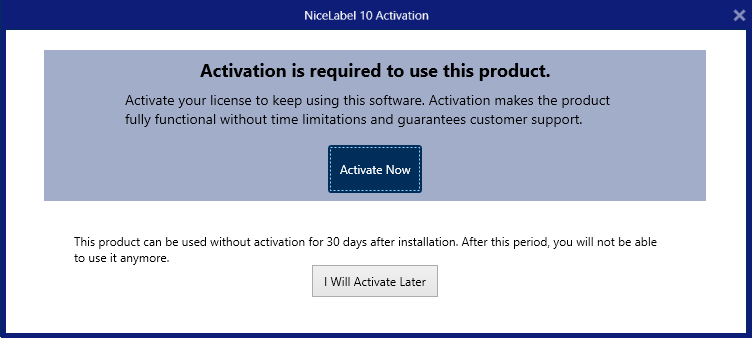
Click Activate Now to enter the License Activation Dialog and to activate your copy of software immediately (recommended).
-
Click the I Will Activate Later button under the Proceed Without Activation option. You will be allowed to use the software without limitations for 30 days. Step number 7 above describes the options if no activation takes place in 30 days.
Note
Activation is required to work with the software without time limitations. It also enables Loftware company to provide you with customized support and help.
-
-
After 30 days without activation, you will be prompted to activate your Loftware license.
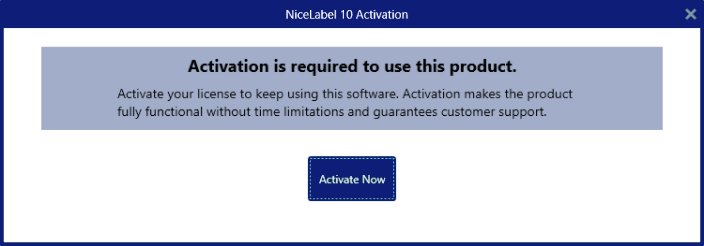
Click Activate Your License to proceed to the License Activation Dialog.
Note
If Loftware has been installed with a predefined product level (a specific installer file has been used), product level selection is not required during the first start.
 more
more