Setup with Loftware Cloud subscription
To activate your Loftware software, connect to Loftware Cloud.
-
Complete Introductory setup steps.
-
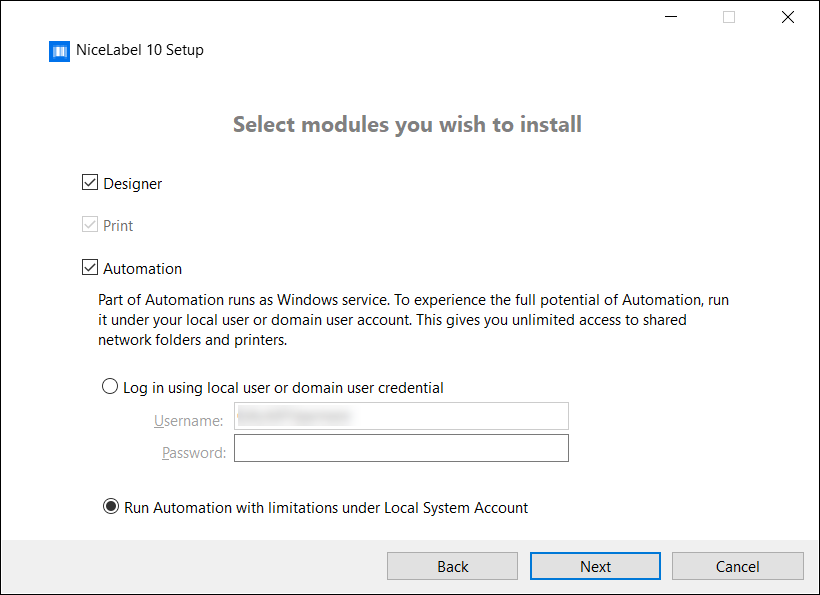
Select the modules you wish to install.
-
Select how you are going to run Automation.
Tip
This step is necessary only if you decide to install Loftware Automation.
Type in the account under which the Windows services are going to run. Make sure you use an account with access to printer drivers and label files. These files must be accessible even if they belong to network shared resources.
Note
We recommend using standard or administrative user accounts. The Local System Account has limited access to network shared files and printers. It requires additional work when setting up printers to make them work correctly.
Note
If you upgrade from NiceLabel Desktop Designer, installation won't prompt you for a user account but will set the Local System Account instead. Make sure you manually change your account to a standard or administrative user account after you install Loftware Designer. Open the Services console and navigate to Loftware Automation Service.
-
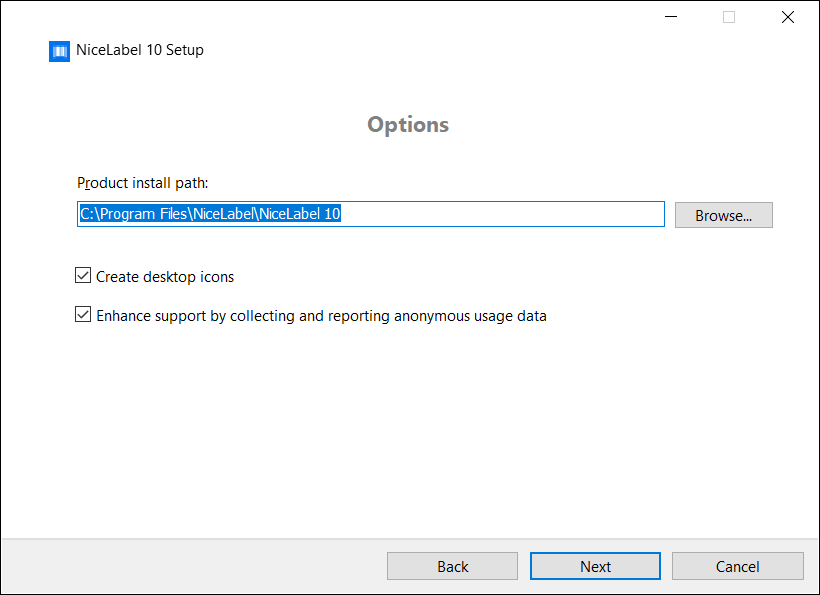
Define installation path and decide if you want to share your usage data with Loftware or not. Anonymous usage data helps Loftware improve the applications and therefore increase your productivity.
-
Click Next. You are ready to start installing your Loftware .
-
Click Install. The installation starts.
-
When the installation completes, click Close.
-
Run Loftware. The Loftware Cloud Sign-in window opens.
-
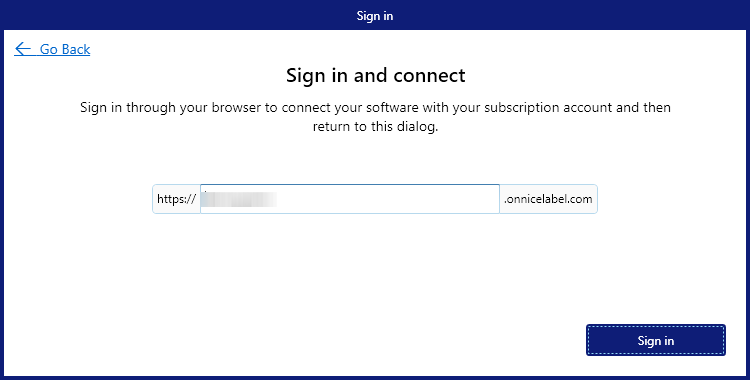
Type your Loftware Cloud name and click Connect.
-
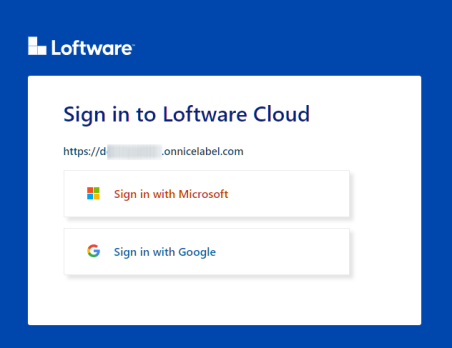
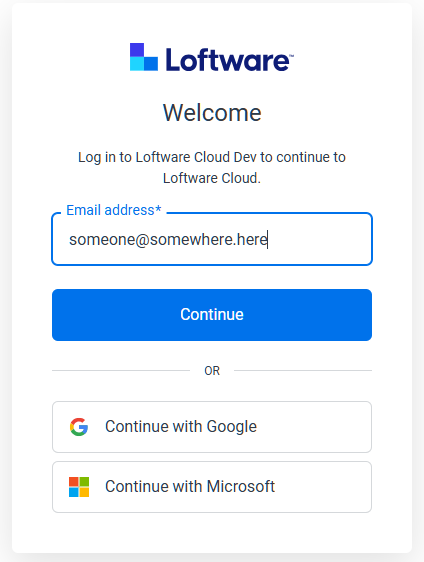
Sign in to your Loftware Cloud using Microsoft or Google account. Use the account you already have for your Loftware Cloud.
Note
You might use an alternative version of Cloud Designer with a slightly different user interface.
Important
Starting with version 142 of Google Chrome, the browser restricts Local Network Access (LNA) by default. This change affects the ability of certain applications, such as Loftware Cloud desktop clients, to complete the sign-in process. If LNA permission is not explicitly granted to the Loftware Cloud sign-in site, you will be unable to sign in from your desktop clients.
To enable Local Network Access for the Loftware Cloud sign-in page in Chrome 142.x:
-
Open Chrome Browser.
-
Ensure you are using version 142.x or later. You can check your Chrome version by clicking the three-dot menu in the top-right corner, selecting Help > About Google Chrome.
-
Navigate to the Loftware Cloud Sign-In Page.
-
Go to the URL used for signing in to Loftware Cloud.
-
Attempt to Sign In to Loftware Cloud.
-
Start the sign-in process as you normally would. You may notice that the process does not complete, or you are prompted regarding network access.
When Chrome blocks local network requests, a small icon (often a crossed-out network or shield symbol) appears in the address bar, indicating that access is restricted.
To enable LNA:
-
Click the icon in the address bar. A dialog will appear, explaining that the page is attempting to access devices on your local network.
-
A dialog will appear, explaining that the page is attempting to access devices on your local network.
-
Click Allow or Grant Access (the button label may vary).
-
Refresh the Sign-In Page.
-
After granting LNA permission, refresh the Loftware Cloud sign-in page.
Attempt to sign in again. The sign-in process should now complete successfully, and you should be able to access the desktop clients.
-
-
Follow the on-screen instructions. Your Loftware connects to the Loftware Cloud. You are ready to start designing labels and solutions.
 more
more