About Loftware Cloud Designer
Loftware Cloud Designer helps small to midsize businesses or growing companies securely design and print labels. With Cloud Designer, you can print remotely on any printer connected to a computer with a Desktop Designer installed.
All Loftware products use printer-seat-based licensing. That means printer seats determine how many printers you can print to at a time.
Note
Printer seats are printer usage units. With each printing to a different physical or virtual (XPS, PDF) printer, a printer takes one printer seat.
To avoid exceeding your printer seat limit, read How Licensing Works.
When you buy Cloud Designer, you decide how many printer seats you want on your license. You can start with just one printer seat or buy more later (up to ten).
Note
To upgrade your product, contact the Loftware sales or your Loftware partner.
Loftware Cloud Designer contains:
Loftware Control Center is a cloud-based application that allows you to share and store your labeling files and print labels. Control Center connects all printers of all users who have their Desktop Designer connected to Control Center. For more information, see About Loftware Control Center.
Your Control Center address is https://designer.onnicelabel.com.Note
You might use an alternative version of Cloud Designer with a slightly different user interface.
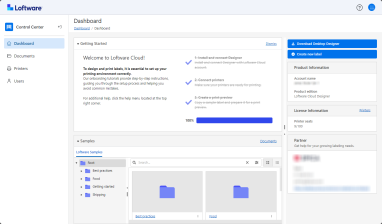
With this version, you have a unique Control Center URL that you received with theLoftware invitation email.
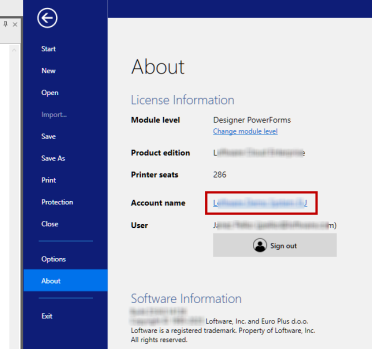
You can also check your Control Center address if you open your Desktop Designer and go to File > About.
Web Designer is a web-hosted application for editing and designing labels that is a part of Control Center. For more information, see About Web Designer.
Loftware Desktop Designer is an application for designing and printing labels. Install Desktop Designer on your computer and connect it to Control Center. In Control Center, you can see all printers you use for printing your labels.. For more information, see Introduction to Desktop Designer.
Note
Computers with Desktop Designer must be connected to Control Center.
Loftware Print is a standalone application for fast and easy printing. It enables printing your labels without the need for opening labels and solutions in Desktop Designer. For more information, see Loftware Print.
Loftware Automation is a trigger based application that automates repetitive tasks like label printing, without human interaction. Automation helps you deploy and run label printing system by synchronizing business events with label production.Automation has three components: Loftware Automation Builder, Loftware Automation Manager and Loftware Automation service. For more information, see Welcome to Loftware Automation.
Note
During Desktop Designer installation, you can install Loftware Automation as a free trial. This step is optional. If you want to use Automation after the trial period, upgrade your product to a higher level.
Getting started with Loftware Cloud Designer
This Getting started guide helps you set up your Loftware Cloud Designer labeling environment.
Set up your printers.
Activate Cloud Designer.
Install and activate Desktop Designer.
Reserve printers in Control Center.
Test print (already designed labels) in Control Center.
Access Web Designer.
System requirements
Before you install Loftware Cloud Designer applications, check the System Requirements.
 more
more