Activating Control Center
To activate your Control Center:
In your web browser, enter your Control Center's URL.
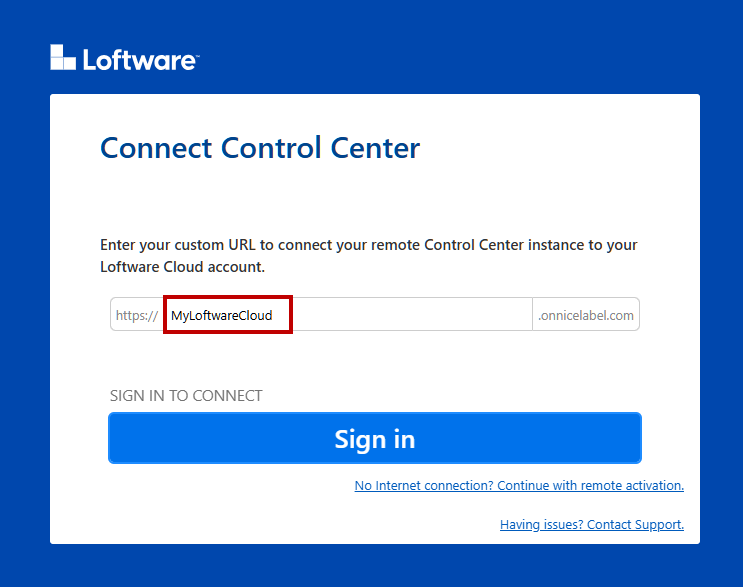
http://yourserver/epmThe Sign in page opens. Enter your Loftware Cloud URL to connect your on-premise Control Center. Click Sign in.
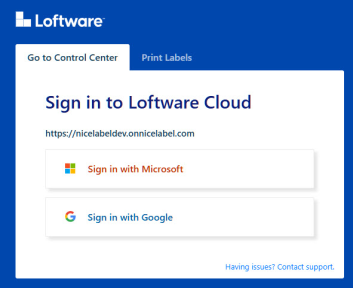
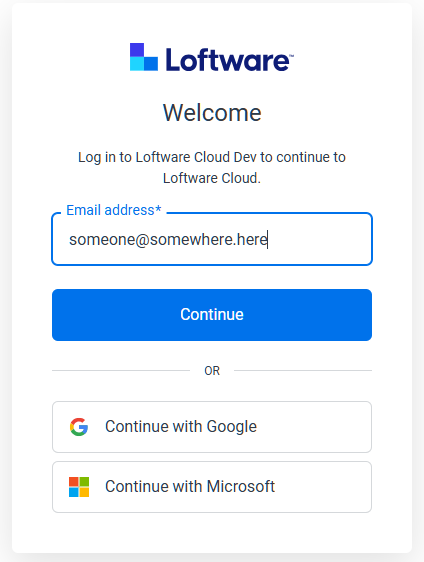
Select your sign in option.
Note
You might use an alternative version of Cloud Designer with a slightly different user interface.
Important
Starting with version 142 of Google Chrome, the browser restricts Local Network Access (LNA) by default. This change affects the ability of certain applications, such as Loftware Cloud desktop clients, to complete the sign-in process. If LNA permission is not explicitly granted to the Loftware Cloud sign-in site, you will be unable to sign in from your desktop clients.
To enable Local Network Access for the Loftware Cloud sign-in page in Chrome 142.x:
Open Chrome Browser.
Ensure you are using version 142.x or later. You can check your Chrome version by clicking the three-dot menu in the top-right corner, selecting Help > About Google Chrome.
Navigate to the Loftware Cloud Sign-In Page.
Go to the URL used for signing in to Loftware Cloud.
Attempt to Sign In to Loftware Cloud.
Start the sign-in process as you normally would. You may notice that the process does not complete, or you are prompted regarding network access.
When Chrome blocks local network requests, a small icon (often a crossed-out network or shield symbol) appears in the address bar, indicating that access is restricted.
To enable LNA:
Click the icon in the address bar. A dialog will appear, explaining that the page is attempting to access devices on your local network.
A dialog will appear, explaining that the page is attempting to access devices on your local network.
Click Allow or Grant Access (the button label may vary).
Refresh the Sign-In Page.
After granting LNA permission, refresh the Loftware Cloud sign-in page.
Attempt to sign in again. The sign-in process should now complete successfully, and you should be able to access the desktop clients.
After you successfully sign in, you can start using your on-premise Control Center. 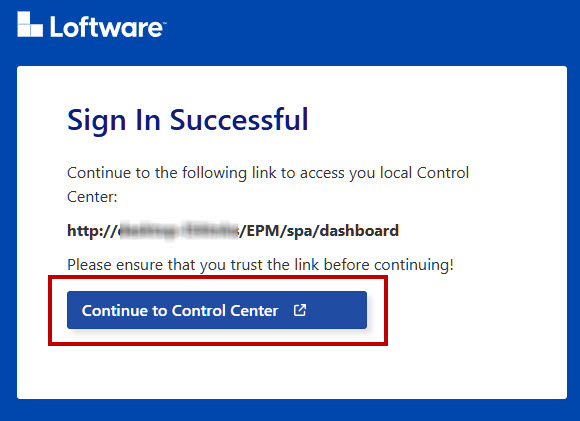
Activating when there is no Internet connection
You can activate your Control Center using Remote Activation.
 more
more