Organizational Users

Connect organizational directories like Microsoft Entra ID (previously Azure Active Directory - AAD), so you can add all your directory users and groups to Loftware Cloud.
Connecting your directory
To connect Loftware Cloud to the Microsoft Entra ID:
Sign in to Control Center with your Microsoft account. This account must also have Entra ID administrative privileges.
Note
If your Microsoft account does not have administrative privileges on Entra ID, you can invite your Entra ID administrator and let them connect the Entra ID to Control Center.
Go to Users > Users. In the Organizational Users and Groups section click Connect button. The Entra ID connection dialog page opens. Follow the on-screen instructions.
Note
By clicking Add To My Organization button you start a wizard where you first sign in to your Entra ID account. Then wizard prompts you to permissions for Control Center to access Entra ID data (users and groups). If you don't agree with permissions, you can cancel the wizard.
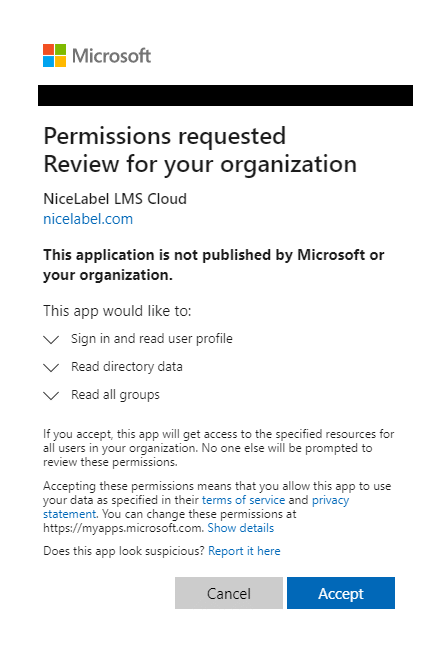
Control Center requests the following permissions when accessing Entra ID:
application permissions: User.ReadBasic.All, GroupMember.Read.All
delegated: User.Read
Your Entra ID is now connected to Control Center and Entra ID users can start usin Control CenterUsers don't get any notification mail from Control Center so send them the link to your Control Center.
By default, your address is https://account.onnicelabel.com/dashboard, where account is the name of your Loftware Cloudaccount.
After your invited users click on the link, they sign in to your Loftware Cloud Control Center using their organizational Microsoft account..
Your logged-in users become Organizational Users in Control Center. The Organizational account is a user account that is defined in your company's organizational directory. Organizational groups are defined in your organizational directory.
 more
more