Counters
Counter variable values increase or decrease with each printed label. Use Counter to assign unique serial identification to your labels or to count your printed labels.
To create a new counter variable:
Click the
Data icon to open theData Sources menu.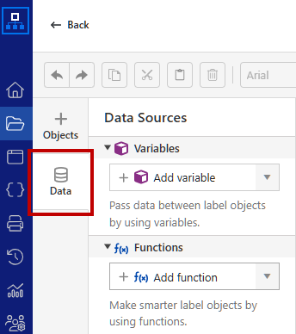
Expand the
Variables drop-down menu, then clickAdd variable .In the drop-down menu, click
New Counter variable .The counter properties window opens, where you can define your counter name, type, initial value, and other properties. In the
Definition section, you can:Set your counter's
Name .Define the
Counter type . Your counter can count incremental (1,2,3,...) or decremental (10,9,8...).Define
Step . For example, if step = 2, your counter will count 1,3,5,7,...Define
Repetition . For example, if Repetition = 3, your counter will count 1,1,1,2,2,2,3,3,3...Define
Initial value . For example, if Initial value = 10, your counter will count 101,102,103...Example
You want your counter to count in the following sequence:
100, 100, 105, 105, 110, 110, 115, 115...
Set your counter properties like this:
Counter type: Incremental
Step: 5
Repetition: 2
Initial value: 100
Preview the first few counter values.
In the
Printer counter section, you define if your label will use a computer or printer internal counter. Most of the label printers support internal printer counters. Use printer counters to optimize your printing speed.Note
If you want to use a printer counter, you must also select a printer font for your text objects with counter variables.
In the
Prompting section:You can override the
Initial value if you enable the optionPrompt for the value at print time .You can change your default prompt text from a counter name to a more descriptive text. For example, your counter name is
ser_no, and to avoid confusion, change the prompt toEnter the starting serial number.Value can not be empty at print time means that your label won't print if your variable value is empty. An error message will pop up.
You can define
Input rules for your counters:Allowed characters : You can limit input characters to numeric, alphanumeric, or letters.You can
Limit your input string length or define theFixed length of your variable value.With the
Check range option, you can define minimum, maximum, or both values for your counter inputs.With
Rollover settings , you define when your counter resets to the initial value.Using min/max values : Your counter restarts when the incremental counter reaches a maximum value or the decremental counter reaches a minimum value. You define the min or max value inInput rules >Check range .When data source changes : You define the variable or database value that resets your counter. When a variable changes its value, the counter resets.When date/time changes : You can define a date or time when your counter resets.
You can modify your input variable values with
Output rules .You can add a
Prefix orSuffix to your counter value. For example, your counter value is "711". To print the string "Serial number: 711", add a prefix "Serial number: ".To print fixed length counter values, even if the counter is variable length, use the
Pad character option. To enable thePad character option, first define theLimit option in Input rules. For example, your counter enables values from 1 to 9999. You would always like to print all four characters, for example, "0027" instead of "27":In
Input rules , set theLimit option to "4".Set the
Pad character option toOn left .Set the
Character option to "0".
Your counter value will print as "0027".
The
Multiline option enables you to design a multiline counter. Without this option, long counter values print in a single line and may exceed the label area. You can defineNumber of lines ,Line length (in number of characters) andEnable word wrap .
Note
If you want to create similar variables to the existing ones, you can copy and paste variables and modify the properties.
Right-click the existing variable, then select
Copy .Right-click the same variable, then select
Paste .A copy of the original variable is generated with the prefix
_1. You can rename the variable name in variableProperties >Definition .
To use counters with your text objects or barcodes:
Place the label object on the design surface.
Click the object to open the object properties.
In the
Source section, select your prompt counter.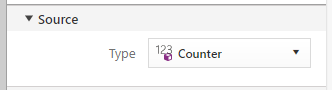
Your label object now presents the counter variable value.
 more
more