Preview Labels with Sample Data for SAP GLM+ Integration
Optionally, you can import label variables or fields provided by SAP GLM+ and generate sample values for them to provide a more realistic result when previewing the output of a label template in Loftware Desktop Designer. This allows you to test the visual design of your label template using sample data so that you can ensure objects fit on the label and do not overlap or have other issues. To do this, you must first enable the generation of these files.
For more information about variables and data mapping, see "Data Mapping in Loftware Desktop Designer" in Overview of Integration with SAP GLM+.
Enable Generation of Variable Definitions File and Sample Values
To enable the generation of a variable definition file and sample values for a label template, do the following.
- Obtain a copy of the config.txt file for SAP GLM+ integration from Control Center.
- Open the config.txt file in a text editor.
- Set the cfgCreateNlvr option to True so that a definition file for the label variables or fields and a file with sample values can be generated.
Example
cfgCreateNlvr=True
-
Save and close the config.txt file.
-
In Control Center > Documents, upload the config.txt file to your Control Center to replace your existing configuration.
Important! The config.txt file must be stored in the same folder as the Automation configuration file (.misx) for SAP GLM+ integration.
Tip: When you no longer want to generate variable definitions and sample values, set the cfgCreateNlvr option to False using the same approach. For more information about options for SAP GLM+ integration, see Options for SAP GLM+ Integration.
Preview a Label with Sample Data
To preview label template output with sample data, do the following.
-
In Labeling Workbench, run the preview/print action. The following files are generated in the same folder as the .misx file for SAP GLM+ integration. <LabelTemplate> represents the name of the associated label template.
- DataModel-<LabelTemplate>.nlvr: Definition file containing a list of variables used in the WWI document.
- DataModel-<LabelTemplate>.values: Values file containing sample data file in the form of key-value pairs suitable for label preview in Loftware Desktop Designer.
-
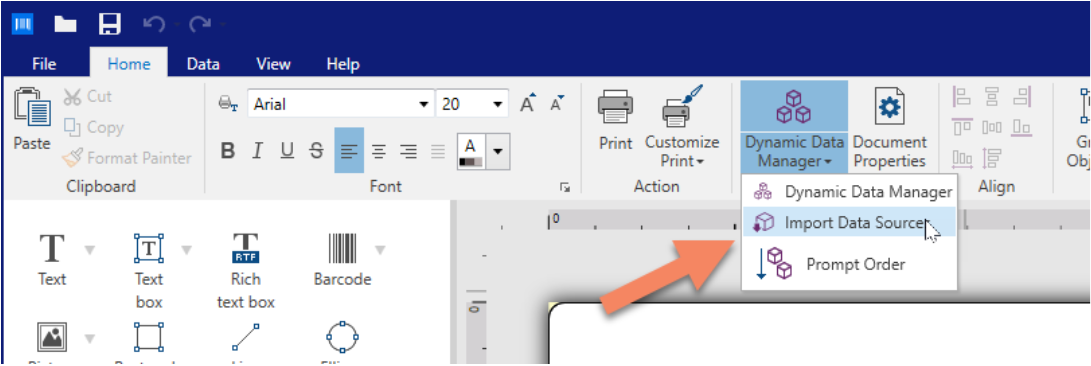
To import the definition file (.nlvr file), in Loftware Desktop Designer navigate to Dynamic Data Manager > Import Data Source and select the .nlvr file generated for the label template.
-
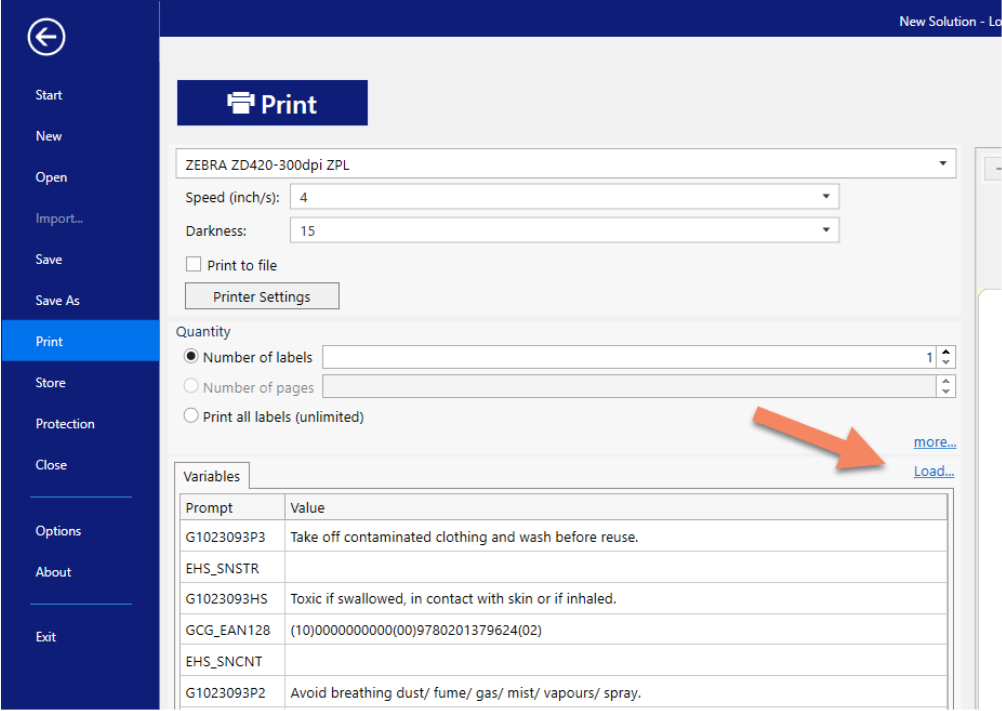
To test how the output of the label template looks when sample data values are applied to the label objects, in a Print dialog click Load and select the .values file generated for the label template.
 more
more